How to Use Google Forms Quiz – Step-by-Step Setup Guide
Google Forms offers built-in quiz functionality that enables educators and professionals to create assessments with automatic grading capabilities. The feature supports multiple question types including multiple choice, checkboxes, dropdowns, and short answer formats, allowing for immediate feedback and streamlined data collection.
Understanding how to configure these quizzes properly ensures accurate scoring and a seamless experience for respondents. From enabling quiz mode to setting answer keys and releasing scores, each step requires attention to detail to maximize the platform’s educational potential.
This guide examines the complete workflow for creating, configuring, and managing quizzes within Google Forms, addressing common questions about grading automation, attempt limitations, and response analysis.
How Do I Create a Quiz in Google Forms?
- Automatic grading works only for specific question types including multiple choice and checkboxes
- Quiz mode must be enabled before answer keys become available
- Email collection helps track individual responses across multiple attempts
- The platform supports up to 200 questions per quiz
- External add-ons provide timing and proctoring capabilities beyond native features
- Immediate feedback options reduce manual grading time by up to 90% for standardized tests
| Feature | Specification |
|---|---|
| Cost | Free with Google account |
| Auto-grading | Multiple choice, checkboxes, dropdown, short answer, grids |
| Manual grading required | Paragraph responses, file uploads |
| Attempt limits | No built-in limit; requires add-ons |
| Integrations | Google Sheets, Google Classroom |
| Max questions | 200 per form |
| Score release | Immediate, later, or after manual review |
| Randomization | Shuffle option available in presentation settings |
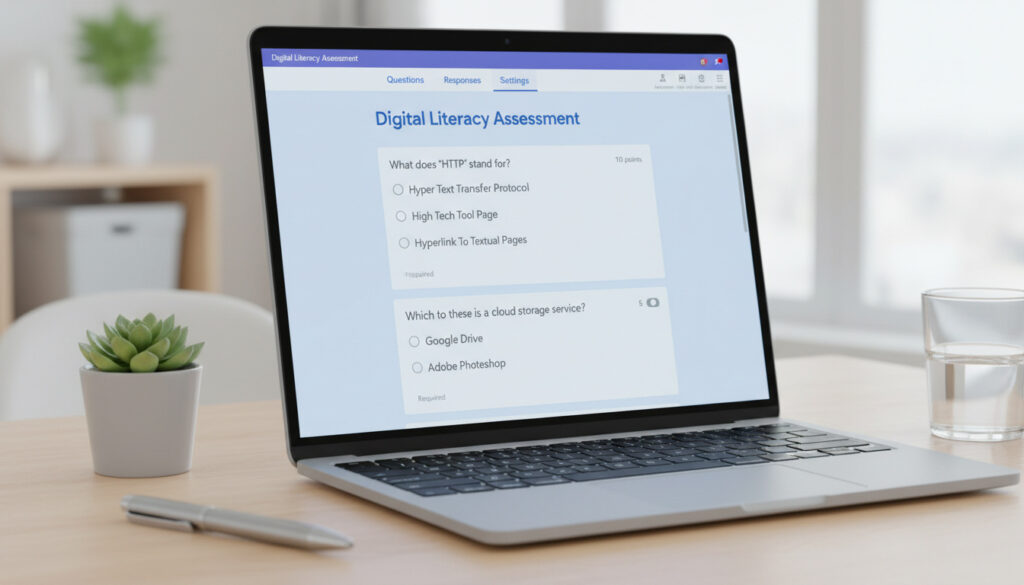
Creating a quiz begins at g.co/createaquiz or through the standard Google Forms interface. Users must navigate to Settings and toggle “Make this a quiz” under the Quizzes tab before adding questions. This activation unlocks the answer key functionality essential for automatic grading.
How to Set Up Grading and Answer Keys in Google Forms Quizzes
Creating the Answer Key
Answer key creation involves selecting correct responses for each question. After enabling quiz mode, each question displays an “Answer key” button at the bottom left. Selecting this option reveals checkboxes next to answer choices, allowing designers to mark all correct options. For checkbox questions, MagicForm’s analysis confirms that all correct options must be selected to receive full points, as partial credit remains unavailable.
Assigning Points and Feedback
Point values appear in the top-right corner of the answer key interface. Extended Forms recommends weighting complex questions higher while maintaining consistency across similar items. Educators may assign zero points for practice questions or scale values up to any integer.
Feedback options include written explanations or YouTube video links for correct and incorrect responses. The “Add answer feedback” feature supports contextual learning by addressing specific misconceptions immediately after submission.
Auto-Grading Capabilities and Limitations
The Google Workspace API documentation clarifies that short answers auto-grade via exact text matching in the correctAnswers field, while paragraph responses always require manual review. This distinction significantly impacts assessment design, requiring educators to choose question formats based on available grading time.
Finalizing answer keys before distributing the quiz prevents scoring discrepancies. Changes to keys after submissions may retroactively alter student scores, which can create confusion during assessment periods.
How to Release Scores and Provide Feedback in Google Forms Quizzes
Score Release Timing Options
Educators control when participants see their results through three distinct release options. Formplus documentation notes that immediate release suits practice scenarios, allowing students to learn from mistakes instantly. Manual release permits review of open-ended responses before sharing final grades, while “Later” options queue scores for batch publication.
Feedback Visibility Settings
Respondent settings determine which elements appear post-submission. Options include displaying missed questions, correct answers, and point values. Full transparency supports formative learning environments, while restricted visibility prevents answer sharing during high-stakes evaluations.
Advanced Google Forms Quiz Features: Shuffle, Limits, and More
Shuffling Question Order
Question shuffling randomizes presentation order for each respondent. This feature, accessible through Settings > Presentation, helps prevent cheating during concurrent testing sessions by ensuring adjacent students receive questions in different sequences.
Managing Attempts and Timing
Native Google Forms does not impose attempt limits or time restrictions. Timer + Proctor for Google Forms provides third-party solutions for enforcing these constraints, addressing critical limitations in the base platform for secure testing environments.
Viewing and Analyzing Responses
Response data aggregates in the Responses tab, with optional linking to Google Sheets for detailed analysis. This integration facilitates longitudinal tracking and statistical review of quiz performance across cohorts.
Linking quiz responses to Google Sheets creates dynamic spreadsheets that update automatically with each submission, enabling complex filtering and chart generation unavailable within the native Forms interface.
File upload and paragraph response question types cannot be auto-graded. These items require manual evaluation through the individual response view, significantly increasing grading time for essay-based assessments.
What Is the Complete Workflow for Launching a Google Forms Quiz?
- Create a new form and enable quiz mode in Settings
- Configure collection preferences including email addresses
- Add questions and set corresponding answer keys with point values
- Preview the quiz using the eye icon to verify functionality
- Distribute via link, email, or embed code
- Review responses and export data to Sheets for analysis
What Are the Definitive Capabilities and Current Limitations?
| Established Capabilities | Uncertainties and Constraints |
|---|---|
| Auto-grading for multiple choice, checkbox, dropdown, and grid questions | No native partial credit assignment for partially correct answers |
| Immediate or manual score release options | No built-in time limits without third-party add-ons |
| Question shuffling for randomized delivery | No automatic plagiarism detection |
| Integration with Google Workspace tools | Maximum 200 questions per form |
| Exact text matching for short answer grading | Manual grading required for all paragraph responses |
| Unlimited responses per form | No native attempt counting restrictions |
How Do Educators and Teams Use Google Forms Quizzes?
Educational institutions represent the primary user base, leveraging the tool for formative assessments and standardized testing. Corporate training teams utilize the platform for compliance certification and skills verification, often integrating results with Deus Ex Machina – Meaning, Origin, Famous Examples documentation systems for comprehensive record-keeping. For educators and teams looking to leverage Google Forms for assessments, understanding its capabilities and limitations is crucial, and you can learn more about its features and how to use it effectively at $Amazon scam detection.
The platform’s accessibility and zero cost barrier make it particularly valuable for resource-constrained environments. Unlike specialized assessment tools, Google Forms requires no additional software installation, functioning entirely within standard web browsers across mobile and desktop devices.
However, organizations requiring sophisticated analytics or Traffic Control Jobs – Careers, Pay and Certification level security protocols may find the basic feature set insufficient for high-stakes evaluations, necessitating supplemental tools or alternative platforms.
What Do Official Documentation and Expert Analyses Confirm?
Google Forms enables teachers to create quizzes with automatic grading for multiple-choice, checkboxes, dropdowns, short answer, multiple choice grid, and checkbox grid questions by enabling quiz mode and setting an answer key.
— Google Support Documentation
Short answers auto-grade via exact text match in correctAnswers; paragraph responses require manual grading.
— Google Workspace Developers API Guide
How Can Educators Implement Google Forms Quizzes Successfully?
Successful implementation requires enabling quiz mode before adding questions, verifying answer keys through preview testing, and establishing clear policies regarding attempt limits and score visibility. While the platform efficiently handles multiple-choice assessments, educators should plan manual grading workflows for open-ended responses and consider third-party add-ons for advanced proctoring needs.
Frequently Asked Questions
How to view quiz responses in Google Forms?
Access the Responses tab at the top of your form. Click the spreadsheet icon to link with Google Sheets for detailed analysis, or view individual submissions directly in the form interface.
How to use Google Forms quiz for multiple choice?
Select “Multiple choice” when adding a question. Enter your question text, provide answer options, click “Answer key” to select the correct choice, and assign points. This format supports automatic grading upon submission.
Can I set a time limit for Google Forms quizzes?
Native Google Forms does not include time limits. Install Timer + Proctor for Google Forms from the Workspace Marketplace to enforce timing restrictions and attempt limits.
Does Google Forms quiz support partial credit?
No, partial credit is not available natively. Checkbox questions require all correct selections for full points; there is no built-in option to award partial points for partially correct answers. Manual grading remains the only workaround.
Can I limit how many times someone takes a quiz?
Google Forms does not natively restrict attempts. Users can submit unlimited responses unless you enable “Limit to 1 response” in settings, which requires respondents to sign in to Google accounts.
How do I export quiz results to Excel?
Click the Responses tab, then the green spreadsheet icon to create a linked Google Sheet. From Sheets, download the data as Excel (XLSX) or CSV format through File > Download.
What is the maximum number of questions allowed?
Google Forms supports up to 200 questions per quiz. For assessments requiring more items, consider splitting content across multiple forms or using specialized assessment platforms with higher capacity limits.
More related posts
 Crowne Plaza Adelaide Mawson Lakes: Hotel Guide & FAQs
 Nazeem Hussain: Sri Lankan-Australian Comedian’s Biography
 Jesse Plemons: Weight Loss, Wife Kirsten Dunst, Son Health Scare
 Laura Linney: Biography, Late Motherhood & Career
 Brent Faiyaz: Biography, Child, Sonder Status & Relationships
 Erling Haaland Stats: Goals, Records, and Career Milestones
 Fire Country Season 4: Cast Departures, Renewal & Streaming
 Pauls Protein Milk: Nutrition, Health Benefits & More